
AutoMod and Automation both take repetitive moderation off your plate, in two different ways. AutoMod is one click for a moderator: you set up the steps once, and any moderator can run them on a topic. Automation runs by itself: when something happens on your board and it matches your conditions, it does the work with nobody watching. In 2.1 both were rebuilt. Here is what is new.
AutoMod
Your AutoMods now sit in the Moderate menu on every topic, next to Close, Pin and Move. Each one only shows up in the forums you set it up for, so a support forum can have its own set.
 AutoMods in the Moderate menu of a topic
One page for everything
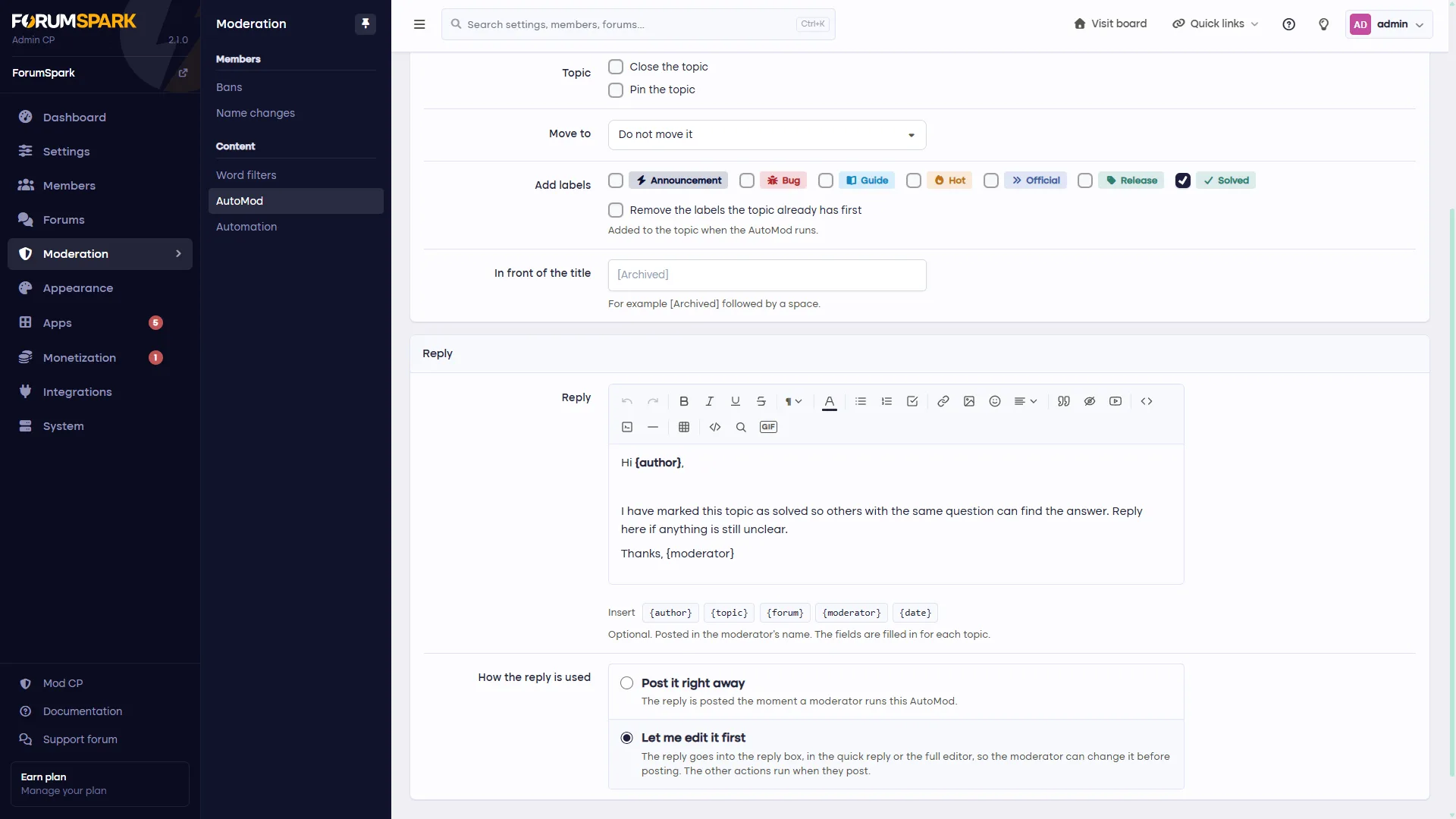
Adding or changing an AutoMod happens on one page, top to bottom: the name and where it can be used, the actions, and the reply. The list of AutoMods now says in plain words what each one does, such as "Closes the topic, pins it, adds Archived, posts a reply".
 Editing an AutoMod on one page
Labels
Add labels as part of an AutoMod: mark a question Solved, an old thread Archived, a bug report Fixed.
Remove the labels a topic already has first, so Solved can replace Question instead of sitting next to it.
Replies that look like your posts
The reply is written in the full editor, so it can have bold text, links, lists, images and emoji, just like a normal post. Below the editor you can insert fields that are filled in for each topic:
{author}: the person who started the topic
{topic}: its title
{forum}, {moderator} and {date}
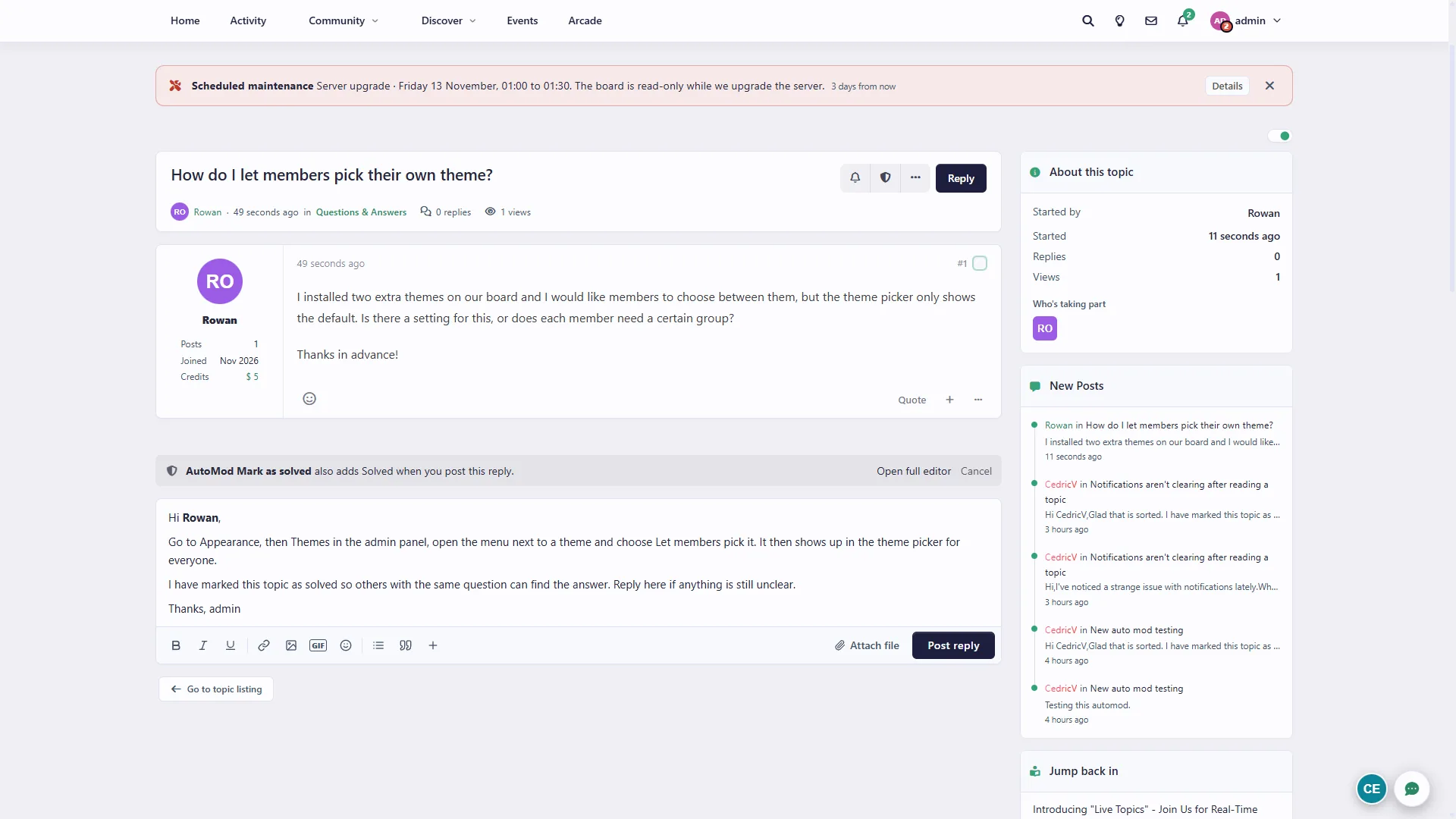
So "Hi {author}, I have marked this topic as solved" becomes "Hi Rowan, I have marked this topic as solved" on Rowan's question, "How do I let members pick their own theme?".
Post right away, or edit first
Every AutoMod now has a choice for its reply:
Post it right away: everything happens the moment you click it.
Let me edit it first: the reply is put in the reply box with the fields already filled in. Add a personal line, then post. A note above the box tells you what else will happen, and the other steps run when you post. It works in the quick reply, and the full editor is one click away.
 The reply box filled in by an AutoMod, with a note about what else will happen
Edit first is the best of both worlds for support boards: the structure of the answer is always there, and the member still gets a reply that sounds like a person wrote it.
Automation
Your rules in plain words
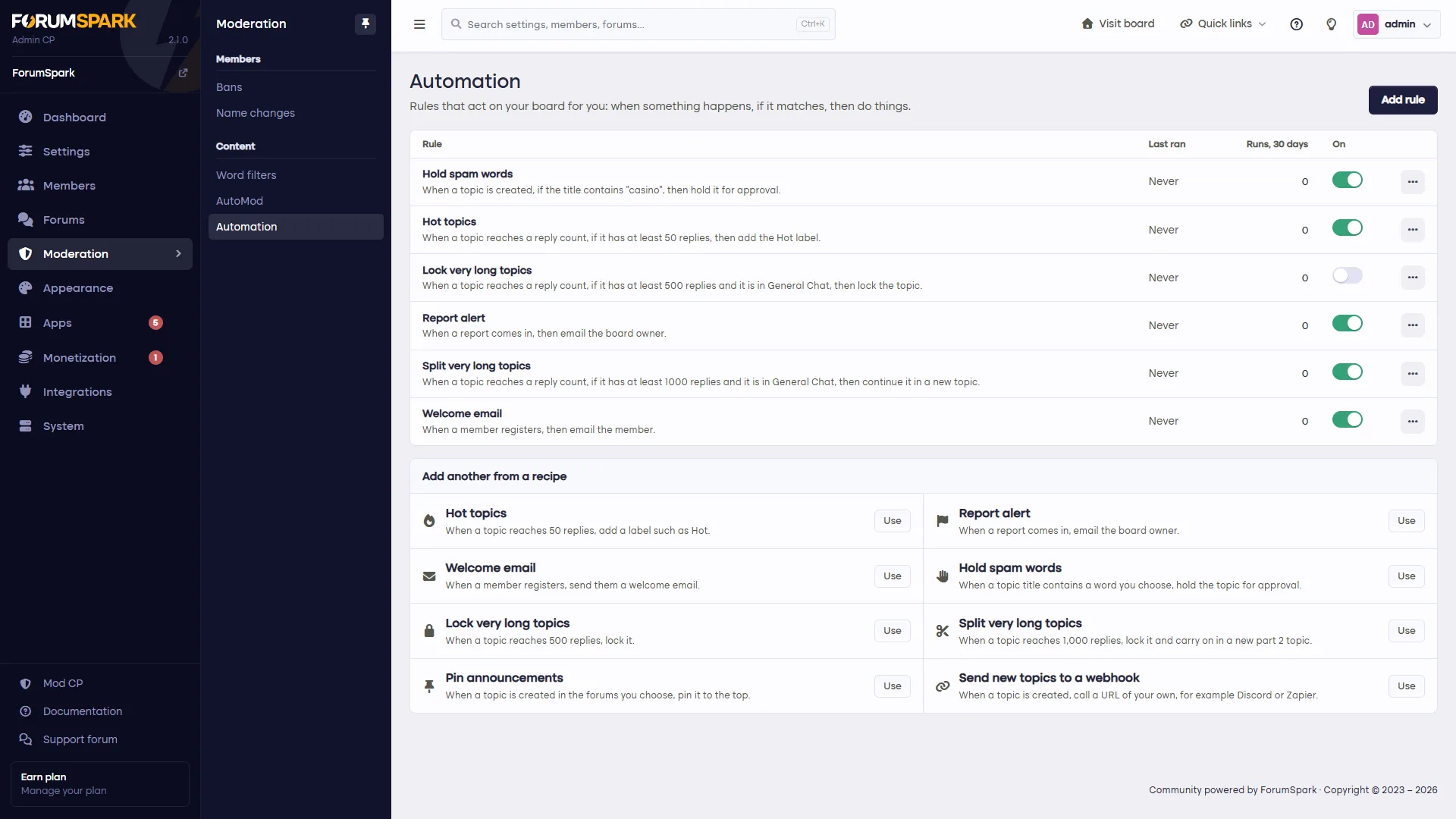
The Automation page lists every rule written out as a sentence, such as "When a topic reaches a reply count, if it has at least 50 replies, then add the Hot label." Next to it you see when it last ran, how often it ran in the last 30 days, and a switch to turn it off without deleting it. The menu on each rule has Edit, Run history, Duplicate and Delete.
 The Automation page with rules in plain words and recipes
Start from a recipe
Below your rules are eight ready-made recipes. Click Use and a new rule opens with everything filled in. Change what you like and save.
Hot topics: add a label when a topic reaches 50 replies.
Report alert: email the board owner when a post is reported.
Welcome email: welcome every new member.
Hold spam words: hold a topic for approval when its title contains a word you choose.
Lock very long topics and Split very long topics (see below).
Pin announcements: pin every new topic in the forums you choose.
Send new topics to a webhook, for example to Discord or Zapier.
A clearer rule editor
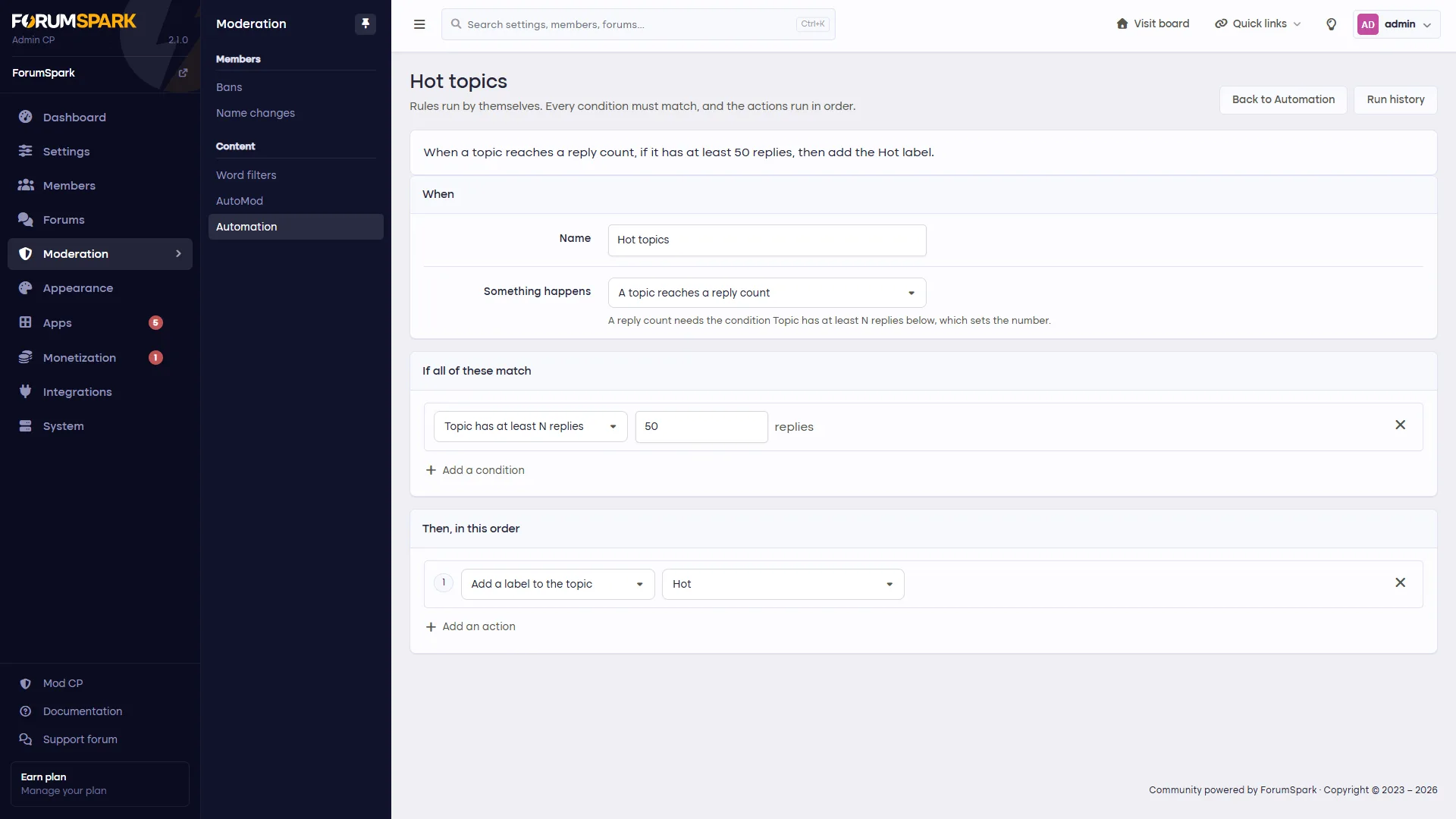
At the top of the editor the whole rule is written as one sentence, and it changes as you edit, so you can read back exactly what the rule will do before you save. Below it are three parts: When something happens, If all of these match, and Then, in this order, with the actions numbered in the order they run.
 Editing a rule, with the rule written out at the top
New: split very long topics
Some topics never end: the count-to-a-million thread, the daily chat, the screenshot thread. The new Continue in a new topic action splits them for you. When a topic reaches the number of replies you set, it starts a new topic called "Title, part 2" in the same forum with the same labels, posts a link to it in the old topic, and locks the old one. The next split becomes part 3, and so on.
Run history
Every rule keeps 30 days of history, now split into Done, Skipped and Failed, with what happened and which topic it was about. When a rule did not do what you expected, this is where you find out why.
Getting started
You’ll find both under Moderation in your updated admin panel: AutoMod for the one-click actions your moderators run, Automation for the rules that run by themselves. The AutoMod and Automation guides in our docs cover every option. ForumSpark 2.1 is soon to be released.

